Bookmarks
Free. Everyone gets this.
A bookmark saves a page you want to come back to. Your reading place is saved on its own, so bookmarks are for everything else.
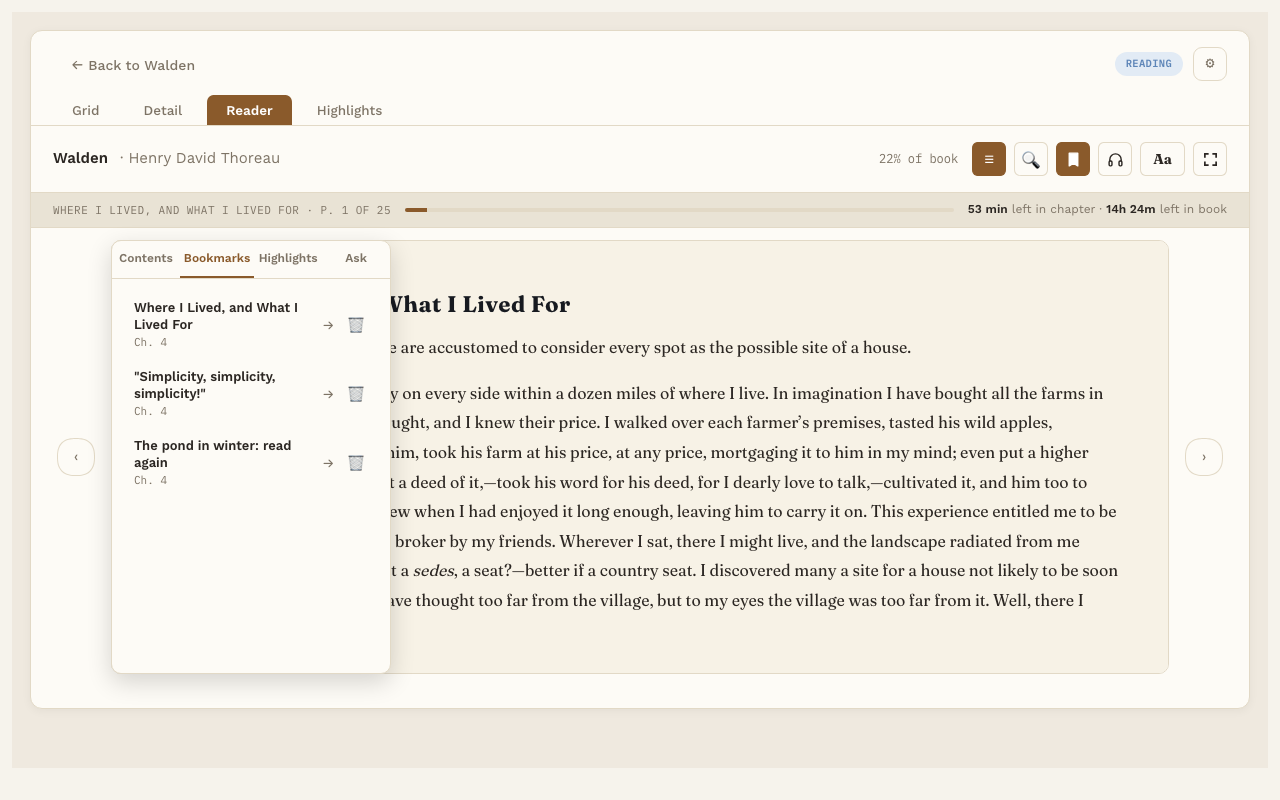
Add a bookmark
Press 🔖 in the Reader toolbar. That’s it. The bookmark is named from the first few words on the page, plus the page number.
Remove a bookmark
There are three ways:
- Go to the page and press 🔖 again. Each page has one bookmark at most.
- In the Reader, press ☰, pick the Bookmarks tab, and press 🗑 beside the bookmark. It goes straight away.
- On the book’s page, press Delete beside the bookmark in the Bookmarks list. It asks “Delete bookmark?” first; press Delete to remove it or Cancel to keep it. The book and your highlights are not affected.
Rename a bookmark
- Press ☰ and pick the Bookmarks tab.
- Click the bookmark’s name.
- Type a new name and press Enter.
Go to a bookmark
- In the Reader, press ☰, pick Bookmarks, and click one.
- On the book’s page, click a bookmark in the Bookmarks list. The book opens right at that page. Under each bookmark you see the chapter it’s in.
After a jump, press ↩ Back to p. N to return to where you were reading.