Export highlights
Pro. Part of Reading Vault Pro.
Export puts your highlights into one tidy file, ready to share, print or paste somewhere else.
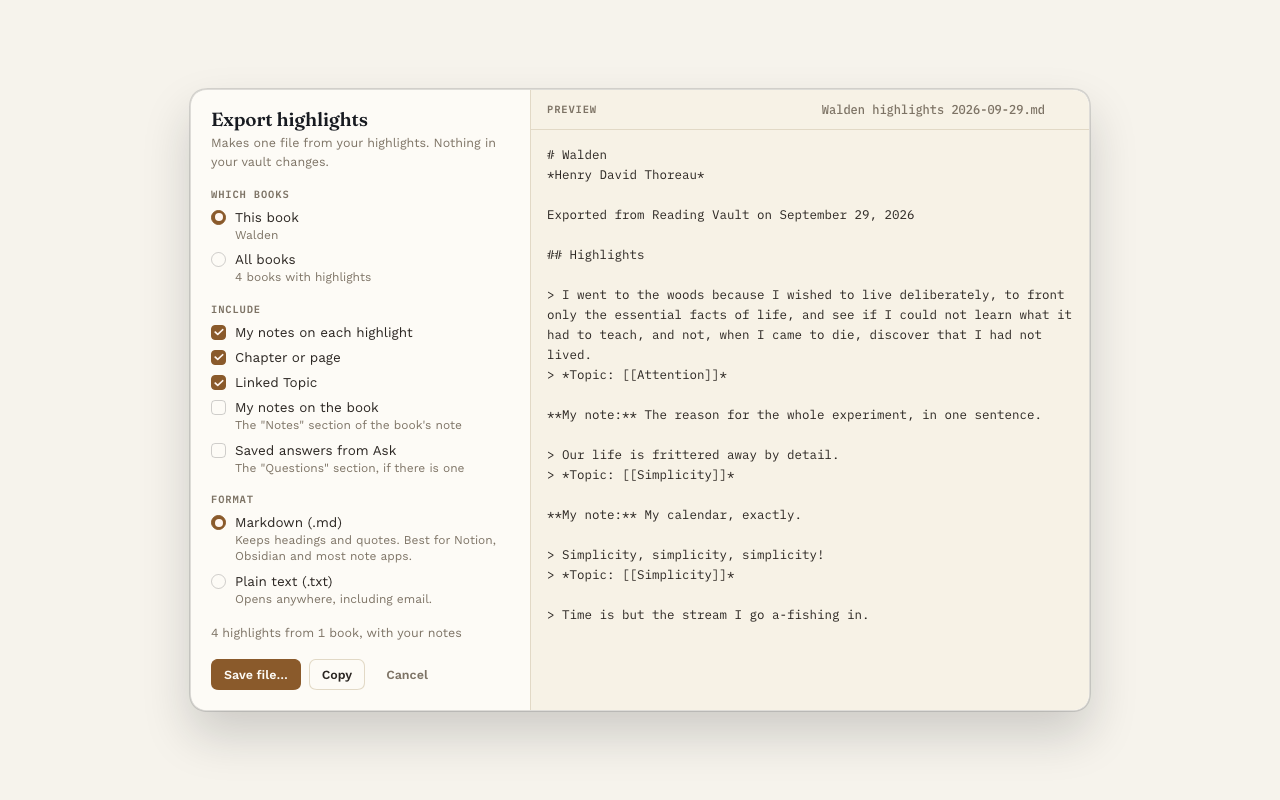
Open it
- On a book’s page, press ⤓ Export next to the Highlights heading.
- On the Highlights tab, press ⤓ Export to export from all your books.
- Or use the command “Export highlights”.
Choose what goes in
- This book or All books.
- What to include:
- My notes on each highlight
- Chapter or page
- Linked Topic
- My notes on the book
- Saved answers from Ask
- Format: Markdown or plain text.
The preview on the right shows exactly what the file will look like as you change things.
Save it
- Save file… opens your computer’s own save window, so you pick where the file goes.
- Copy puts the whole thing on your clipboard, ready to paste.
Good to know
- Highlights come out in the order they appear in the book.
- Dismissed highlights are left out.
- Without Pro, you can still open the window and see the preview. Your highlights are always in your vault as notes anyway.