Full screen
Free. Everyone gets this.
Full screen fills your whole screen with just the book. Obsidian’s sidebars, tabs and toolbar all step out of the way.
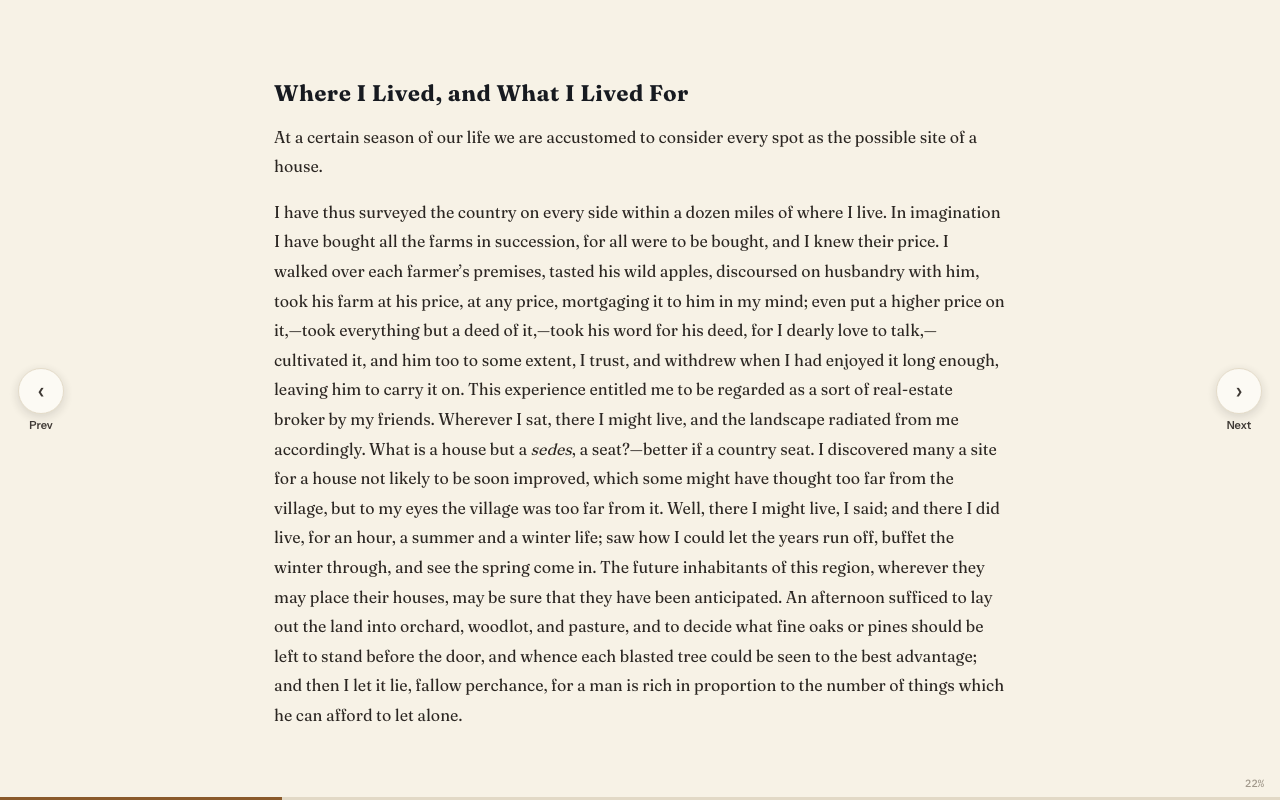
Go full screen
- Press the Full screen button at the end of the Reader toolbar.
- Or use the command “Open in full screen”. You can give it a hotkey in Obsidian’s settings.
While you read
- A short hint shows when you enter: “Press Esc to exit · ← → to turn pages”.
- Turn pages with the Prev and Next arrows at the sides, or the arrow keys.
- A thin line at the bottom shows your progress.
- Move the mouse to the top of the screen. A slim bar appears with the book, chapter and page, the usual Reader buttons, and Exit.
- While Listen is playing, a small bar at the top shows the voice, back, pause, forward and speed.
Leave full screen
Press Esc, or move the mouse: a small Exit full screen button shows in the top corner while it moves. The slim bar at the top has Exit too. If a pop-up or side panel is open, the first Esc closes just that. Press Esc again to leave full screen.
Good to know
- Books always open in the normal Reader. Full screen isn’t remembered.
- Obsidian’s own small messages can’t show over full screen. They wait until you leave.