On your iPhone or iPad
Pro. Reading Vault on a phone or tablet needs a Pro license.
On a computer, the free version keeps working as before. One Pro license covers your computer and your phone, with no extra charge.
What you need
- An iPhone or iPad with iOS 17 or newer.
- Obsidian on the phone, with the same vault as your computer (Obsidian Sync, iCloud or whatever you already use to sync). Your books, highlights and notes come across with the vault.
- Reading Vault turned on in the phone’s Obsidian: Settings, Community plugins.
Unlock Pro on the phone
Enter your key on your computer: Settings, Reading Vault, Pro license (see Reading Vault Pro). The key is saved in Reading Vault’s settings inside your vault, so your phone picks it up with the vault. Then close Obsidian on the phone completely and open it again, because Reading Vault reads its settings when Obsidian starts.
Your sync needs to copy plugin settings. With Obsidian Sync, turn on Installed community plugin list on the phone under Settings, Sync, Vault configuration sync (it’s off by default), wait for it to sync, then close and reopen Obsidian.
If the phone still shows “Reading Vault on phones is part of Pro”, unlock it right there:
- Copy your key from your purchase email. It starts with RVPK-.
- Paste it into the box on that screen and tap Unlock.
Either way, your key is checked on your computer or phone, offline. It never goes online.
What works on the phone
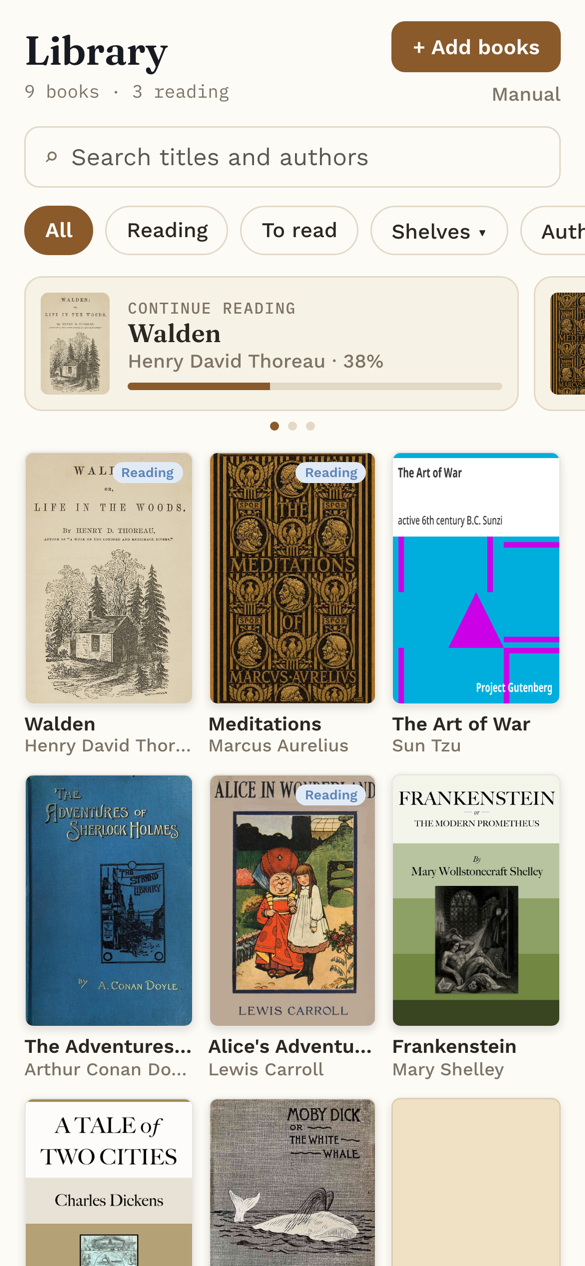
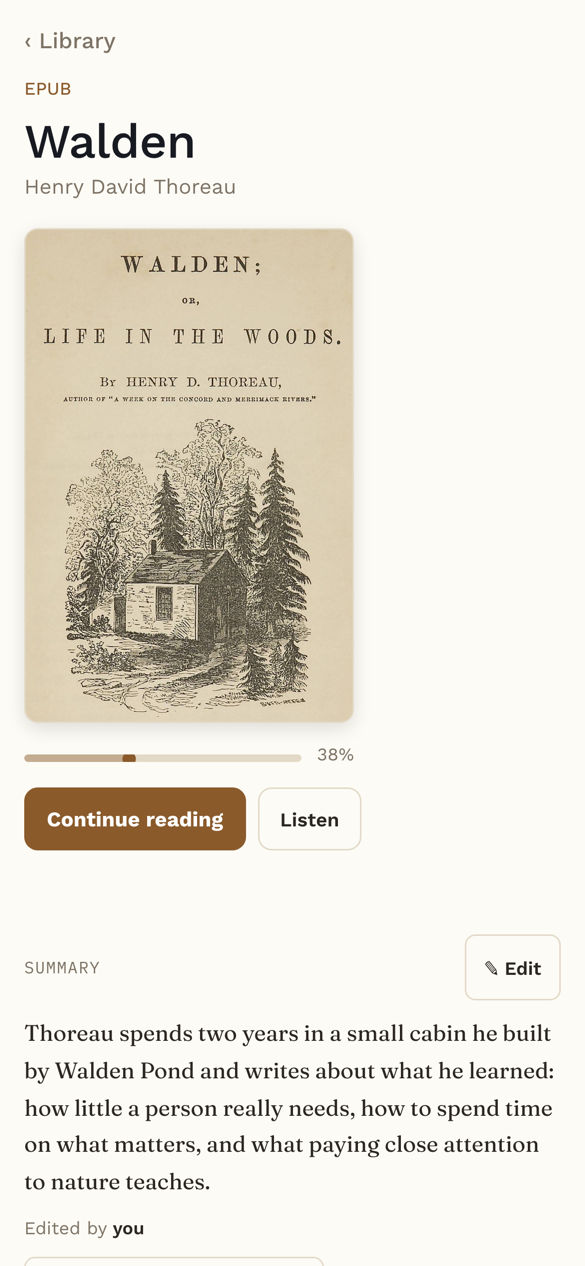
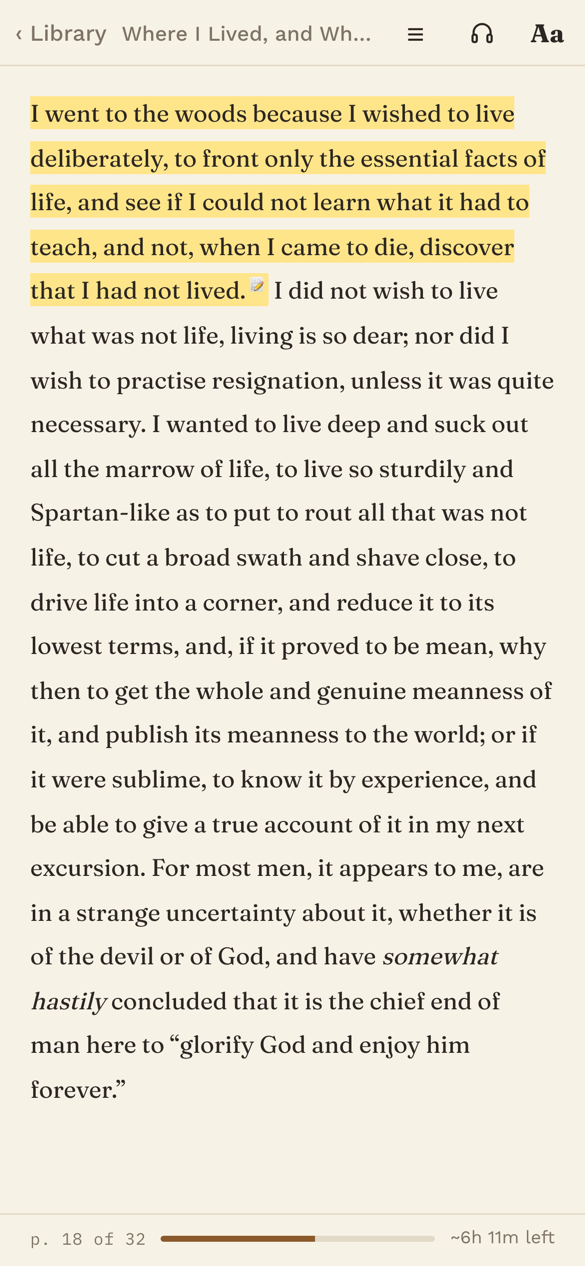
- Your Library, reading EPUB and PDF books, highlights, notes and bookmarks, laid out for a small screen.
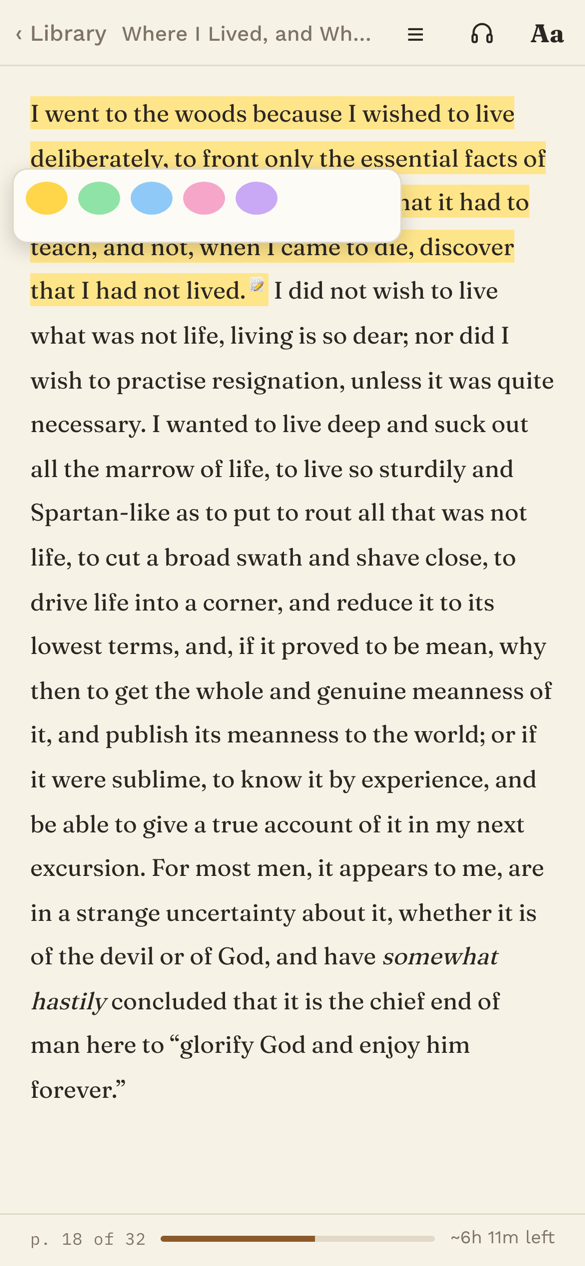
- To highlight or look up a word, touch and hold it (drag the handles for a longer passage), then wait a moment: the color panel appears, with Look up when one word is selected.
- + Add books opens the phone’s Files app, so you can pick an EPUB or PDF from there.
- PDFs open in Text view, which lays the words out to fit your screen. Tap Page at the top to see the printed page instead.
- In Export highlights, Save file offers Save into my vault and Share.
Listening on the phone
- The phone reads aloud with its own built-in voices. The natural offline voices are for computers only.
- Listening stops when you lock your phone. Keep the screen on while you listen.
- The speed steps are set for the phone’s voices, so 1.3× on a phone sounds about like 1.5× on a computer.
Android
Reading Vault installs on Android, but it doesn’t support Android yet. It shows a short message instead of your books. Your books and highlights stay safe in your notes.