Highlights
Free. Everyone gets this.
Highlight a passage to keep it. Each highlight becomes its own note in your vault, with the passage, its color and your note on it.
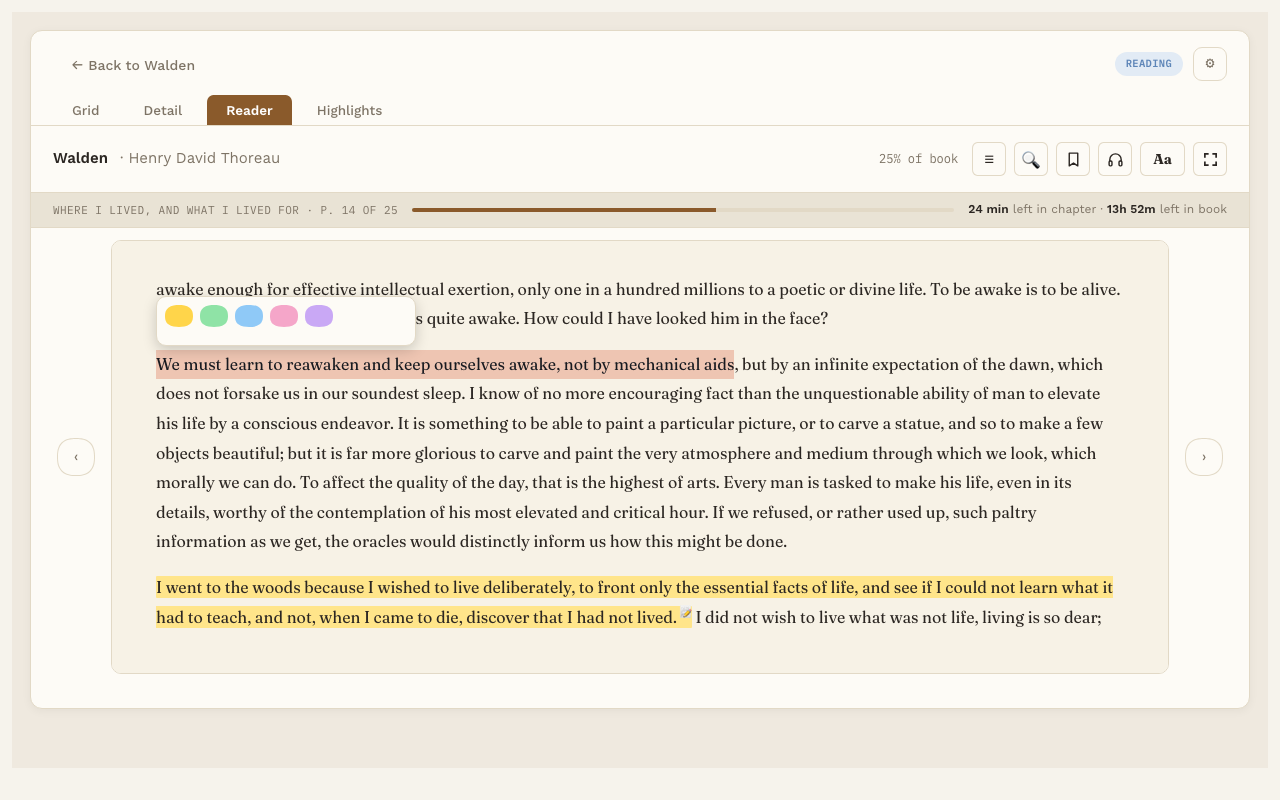
Make a highlight
- Select some text on the page with your mouse.
- Pick a color: Yellow, Green, Blue, Pink or Lavender.
This works in EPUB and PDF books.
While Listen is reading, press H to save the sentence you’re hearing as a highlight.
Change or delete a highlight
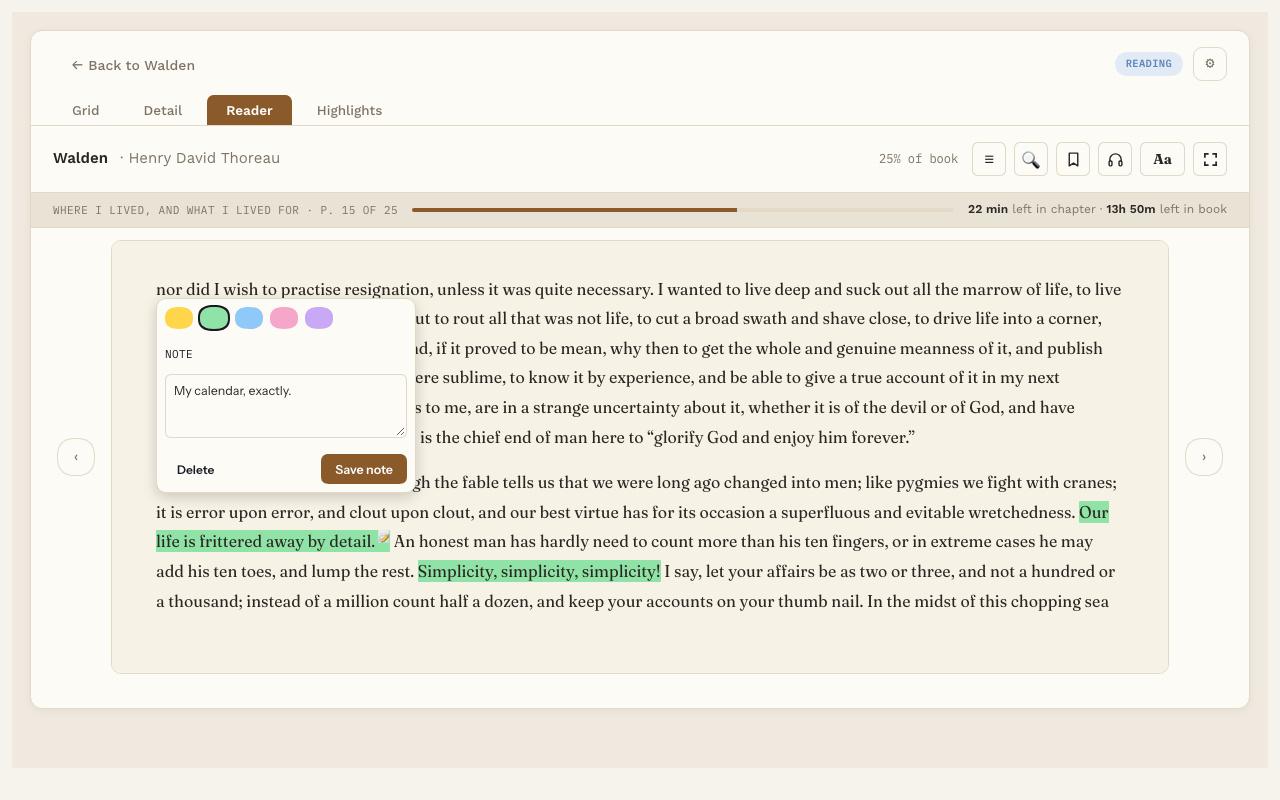
Click the highlighted text. A small panel opens where you can:
- Pick a new color.
- Write a Note about this passage, then press Save note. On EPUB pages, a small 📝 shows the highlight has a note.
- Press Delete to remove the highlight.
See all your highlights
- In the Reader, press ☰ and pick the Highlights tab. Click one to jump to it.
- On the book’s page, the Highlights list shows them all.
- The Highlights tab at the top of Reading Vault lists highlights for one book, or across your whole library, newest first, each with a Delete button (it asks first). With Pro it is also where you link highlights to Topic notes: Skip for now takes one out of that list and keeps it in your notes.
In the book’s own note
Reading Vault keeps an up-to-date Highlights section at the bottom of each book’s note. Each one has the passage, where it is, your note, and a link that opens the Reader at that spot. You can turn this off in Settings. See Notes.
Want more?
With Pro, you can link highlights to Topic notes, have them come back in Highlight review, and export them to a file.