Settings and folders
Free. Everyone gets this.
To open the settings, go to Obsidian’s Settings, then Community plugins, then Reading Vault. Here’s what each section does, from top to bottom.
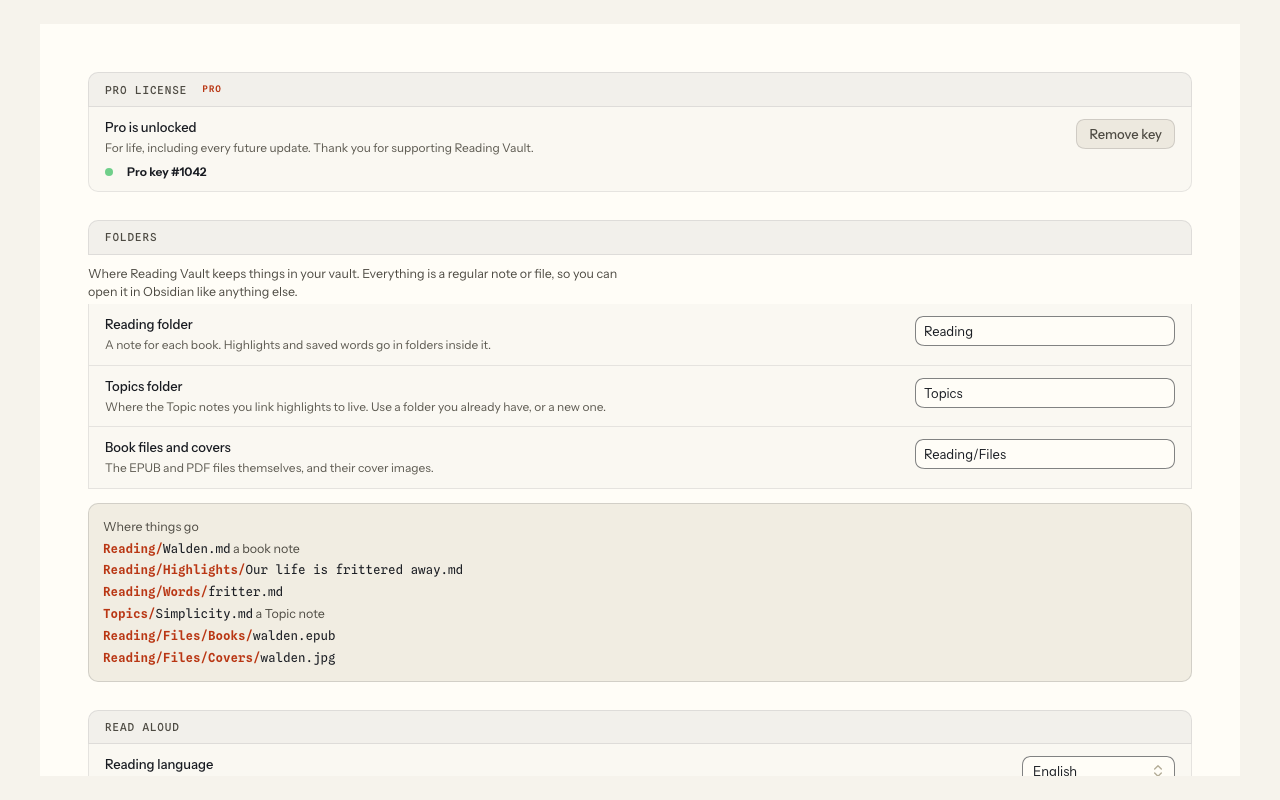
Pro license
Where you unlock Pro with your key. See Reading Vault Pro.
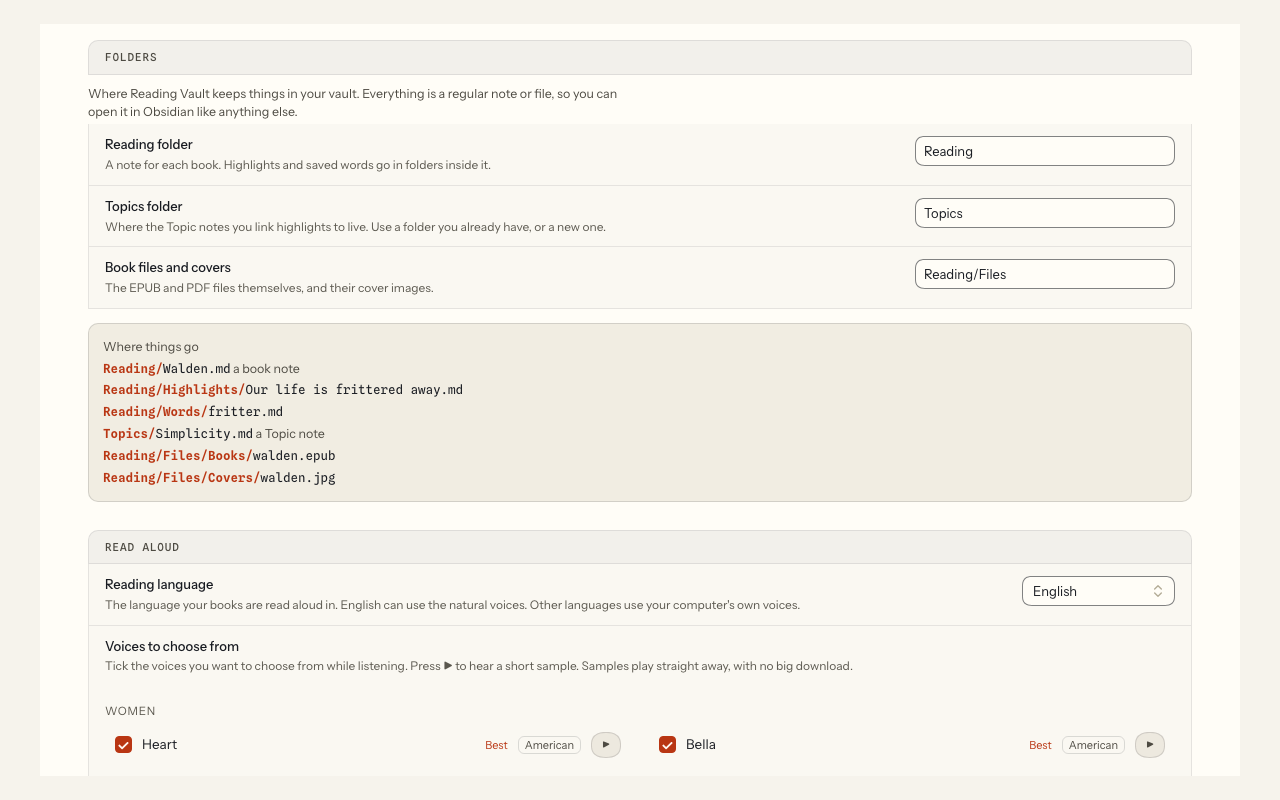
Folders
Choose where Reading Vault keeps things in your vault:
- Reading folder. A note for each book. Your highlights and saved words go in folders inside it.
- Topics folder. Where your Topic notes live. You can use a folder you already have.
- Book files and covers. The EPUB and PDF files and their cover pictures.
A new vault starts with “Reading”, “Topics” and “Reading/Files”. As you type, folders from your vault are suggested, and a name that isn’t a folder yet is marked “(new folder)”. Below the boxes, an example shows exactly where things will go.
Changing a folder later
If the old folder already has things in it, Reading Vault first shows how many books, highlights and saved words are there. Then you choose:
- Move them. Everything moves to the new folder, and every link to it keeps working.
- Go back. Nothing changes.
Nothing is ever deleted. The old folder is left behind, empty.
Read aloud
- Reading language. The language your books are in.
- Voices to choose from. Tick the voices you want to choose from while listening. Press ▶ to hear one. Only natural-sounding computer voices are ticked to begin with; Show all Mac voices shows Apple’s novelty voices too.
- Default voice. The voice Listen starts with.
- Natural voices (Kokoro). Pro. With Pro, the 28 natural voices are listed first under Voices to choose from, already ticked, with your computer’s own voices in a second group below. The one-time download (about 325 MB) is its own line under Default voice: press Download (325 MB). Without Pro, a card lets you hear every natural voice and explains Pro. See Natural offline voices.
Listening
Pro. The same three settings as the listening bar’s Pro buttons (changing one place changes the other):
- Keep going across chapters. At the end of a chapter the next one starts by itself.
- Light up each word. The word being read lights up inside the sentence.
- Sleep timer. What the 🌙 button starts with.
Without Pro they’re shown switched off, with Get Pro. See Audiobook mode.
Reading
- Page color. The page color books start with: Auto, Dark or Light.
- Highlights in the book note. Keeps each book’s note up to date with its highlights. See Notes.
Highlight review
Pro. How many highlights come back each day, and whether to hide the passage until you tap it. See Highlight review. Without Pro these are shown locked, with Get Pro.
Ask the book
Pro. Turn on Ask, pick an AI service, and add your key. See Ask the book.
Word lookup
Download dictionaries, and turn on Explain in this sentence (Pro). See Word lookup.